M09 G-Code: How to Turn Off Coolant in CNC Programs

M09 is the M-code that shuts off coolant on a CNC machine. It’s one of the most commonly used codes in any CNC program — you’ll see it near the end of almost every operation where coolant was active.

Key Takeaways

  • M09 turns off both mist coolant (M07) and flood coolant (M08)
  • It doesn’t affect through-spindle coolant, which has its own separate code
  • Always program M09 after the tool has finished cutting, not while the cutter is still engaged
  • M09 is automatically executed by program end codes like M30 and M02
  • It appears near the end of an operation, just before the tool returns to home or a tool change happens
M09 – At A Glance
FunctionTurn off coolant (mist and flood)
CancelsM07 (mist coolant), M08 (flood coolant)
Does NOT cancelThrough-spindle coolant (TSC), high-pressure coolant
Also cancelled byM00, M01, M02, M30

What Does M09 Do?

M09 shuts off the coolant supply to the cutting area. This includes both flood coolant (M08) and mist coolant (M07).

Once M09 executes, the coolant pump stops and the flow cuts off. The machine doesn’t move — it just stops the coolant.

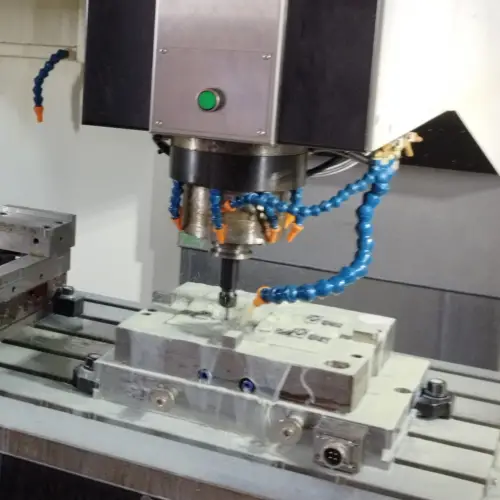
cnc machine table with coolant lines and spindle shown
Flood coolant in action

Where M09 Goes in a CNC Program

M09 typically appears in two places:

  • After an operation finishes and before a tool change
  • At or near the end of the program before the tool retracts to home

Here’s a simple example showing where M09 fits:

T01 M06                        (Tool change to Tool 1)
G90 G54 G00 X0. Y0.            (Move to start position)
G43 H01 Z1.0                   (Apply tool length offset)
M08                            (Turn on flood coolant)
G01 Z-0.5 F10.                 (Begin cutting)
X5.0 F20.                      (Cut along X axis)
G00 Z1.0                       (Retract tool)
M09                            (Turn off coolant)
M05                            (Stop spindle)
G28 G91 Z0.                    (Return Z to home)
M30                            (End program)

M09 fires after the tool retracts from the cut and before the spindle stops. That’s the typical sequence: retract → M09 → M05 → home → M30.

COMMON MISTAKE – Forgetting M09 before a tool change

Why it matters: Some machines will continue running coolant through the tool change, which can make a mess and waste fluid. Some controls also flag it. Get in the habit of programming M09 before every M06 tool change.

Why Coolant Matters in CNC Machining

Using coolant correctly extends tool life, improves surface finish, and keeps chips clear of the cutting zone. M09 is just as important as M08 — turning coolant off at the right time prevents flooding the machine unnecessarily and keeps the work area cleaner.

The three main benefits of coolant during a cut:

  • Reduces heat buildup at the cutting edge
  • Lubricates the cutter and workpiece
  • Removes chips from the cutting area

M07 vs M08: What’s the Difference?

There are two standard coolant-on codes, and M09 turns off both of them.

M08 — Flood coolant is the most common. It pumps a steady stream of cutting fluid directly over the cutter and workpiece. It’s the best option for controlling heat and clearing chips on most materials.

M07 — Mist coolant combines cutting fluid with compressed air and sprays a fine mist. It uses less fluid and can be less messy, but it doesn’t reduce heat as effectively as flood coolant.
cnc machine table with coolant lines and spindle shown
Flood coolant close up

Either way, M09 cancels both.

Other Coolant Options

Beyond flood and mist, there are other coolant delivery methods. M09 typically does NOT cancel these — they have their own codes:

Through-spindle coolant (TSC): Delivers coolant through the center of the spindle and tool directly to the cutting edge. This is especially effective for deep hole drilling because it pushes chips up and out of the hole.

High-pressure coolant: Similar to flood coolant but delivered at over 1,000 PSI. The extra pressure improves chip evacuation and cooling in difficult cuts. This usually has its own on/off code depending on the control.

Air blast: Uses compressed air only — no fluid. It clears chips and reduces heat without lubricating. Often used on materials that are sensitive to cutting fluids.

COMMON MISTAKE – Turning M09 off while the cutter is still cutting

Why it matters: If coolant cuts out mid-cut on a deep pass or difficult material, heat builds up fast and can cause tool failure, a poor surface finish, or a workpiece that’s out of spec. Always program M09 after the tool has retracted from the cut.

Which Codes Also Turn Coolant Off?

M09 is the dedicated coolant-off code, but several program control codes also shut off coolant as part of what they do:

You don’t need to program M09 before M30 in most cases — M30 handles it. But many programmers include it anyway as a habit, and it doesn’t hurt.

FAQs

Does M09 cancel through-spindle coolant?

No. M09 turns off standard flood (M08) and mist (M07) coolant only. Through-spindle coolant has its own dedicated on/off codes, which vary by machine and control. Check your machine’s programming manual for the specific code.

Do I need to program M09 at the end of every program?

Not always — M30 and M02 automatically shut off coolant when the program ends. That said, many programmers include M09 before the final tool retract as a good habit, especially before a tool change mid-program.

Does every CNC machine support M09?

Most industrial CNC mills and lathes do. Hobbyist-level machines like CNC routers often don’t come with a coolant system, so M09 may not do anything on those machines — though a coolant system can usually be added.

What happens if I forget to program M08 but include M09?

Nothing harmful — M09 just won’t have anything to cancel. The machine will execute the block and move on. It’s a harmless no-op in that case.
M08 G-Code: How to Turn On Flood Coolant in CNC

M08 is the CNC M-code that turns on flood coolant. It tells the machine to open the coolant valve and flood the cutting area with liquid coolant. You’ll see it in nearly every real-world CNC program that involves cutting metal.

Key Takeaways

  • M08 turns on flood coolant — the most common coolant type used in CNC machining
  • It’s a modal command, meaning it stays on until you cancel it with M09
  • Flood coolant lubricates the cutter, clears chips, and reduces heat buildup
  • M07 turns on mist coolant — a lighter alternative that uses less fluid
  • Always cancel coolant with M09 before the program ends or before a tool change on machines that require it
M08 – At A Glance
FunctionTurn on flood coolant
TypeModal
Cancelled byM09
Related codesM07 (mist coolant)

What Does M08 Do?

M08 opens the flood coolant valve on your CNC machine. Coolant flows out through nozzles directed at the cutting tool and workpiece. It keeps running until you turn it off with M09.

The word “flood” is pretty literal — you’re washing the cutting zone with a steady stream of liquid. That liquid is typically a water-based coolant mixture, though some machines use oil-based coolant depending on the material.

cnc machine table with coolant lines and spindle shown
Flood coolant in action

Why Use Flood Coolant?

There are three main reasons machinists use coolant:

Lubrication — Coolant reduces friction between the cutting tool and the workpiece. Less friction means less heat generated at the cut.

Chip clearing — Coolant washes chips away from the cutting zone. If chips pile up, they get recut. Recutting chips causes heat buildup and can damage or dull your tool faster.

Heat reduction — Cutting metal generates a lot of heat. Excess heat shortens tool life, can cause workpiece distortion on tight-tolerance parts, and may affect the surface finish.

All three work together. A cooler, cleaner cut means longer tool life and better part quality.

M08 vs M07: Flood Coolant vs Mist Coolant

The two most common coolant M-codes are M08 and M07.

M08 — Flood coolant sends a continuous stream of liquid coolant to the cutting zone. It’s the standard choice for most metal cutting operations.

M07 — Mist coolant mixes coolant with compressed air and sprays a fine mist. It uses less coolant fluid and makes less of a mess, but it’s not as effective at pulling heat out of the cut. Mist is more common with materials that don’t tolerate flooding well, or in shops trying to reduce coolant consumption.

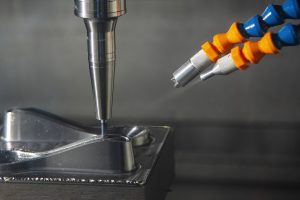
oil mist coolant being applied to a cnc machine cutting tool
Mist coolant in action

When in doubt, flood coolant is the safer default for most CNC milling and turning applications.

Other Coolant Options

Beyond flood and mist, you’ll run into a few other coolant delivery methods on industrial machines:

Air blast — Uses compressed air only, no fluid. It clears chips and reduces some heat but doesn’t lubricate. Common with materials like aluminum in certain setups, or with materials that react poorly to liquid coolant.

High-pressure coolant — Same idea as flood coolant, but the coolant hits the workpiece at over 1,000 PSI. The higher pressure and volume helps with aggressive chip evacuation — especially useful in deep pocketing, threading, and difficult materials like titanium or Inconel.

Through-spindle coolant — Coolant flows through the center of the spindle and exits right at the cutting edge. This is especially effective for drilling deep holes because it pushes chips back up and out of the hole rather than relying on the coolant to reach the bottom from outside.

M08 in a Program Example

M08 is typically placed at the start of a cutting sequence, right after you position the tool and before the first cut. It stays on throughout the operation. M09 turns it off.

Here’s a simple milling example:

G90 G54 G00 X0. Y0.          (Absolute mode, work offset, rapid to start)
G43 H01 Z1.0 M03 S3000       (Tool length comp, spindle on at 3000 RPM)
M08                           (Flood coolant ON)
G01 Z-0.25 F20.0             (Feed down to depth)
X5.0                          (Mill across the part)
G00 Z1.0                      (Rapid up)
M09                           (Flood coolant OFF)
M05                           (Spindle off)
M30                           (Program end)

You can also put M08 on the same line as a motion command — the machine will turn on the coolant as it starts that move. Both formats are valid; putting it on its own line is just easier to read.

COMMON MISTAKE – Leaving M08 active during a tool change

Why it matters: On most machines, coolant should be off during a tool change (M09 before T__ M06). Coolant running during a tool change can flood the spindle taper or make the tool change unreliable.

Some machines handle this automatically; others don’t. When in doubt, always program M09 before M06.

How to Turn Off Flood Coolant

Use M09 to turn off all coolant — flood, mist, or otherwise.

Several other M-codes also cancel coolant as part of their function:

Even though these commands typically cancel coolant, it’s good practice to include an explicit M09 in your program before program end. That way the behavior is predictable regardless of which control you’re running.

COMMON MISTAKE – Forgetting M09 before M30 (program end)

Why it matters: On some controls, M30 will shut off coolant as part of the end-of-program sequence. On others, it won’t. If you forget M09 and the machine doesn’t cancel it automatically, coolant keeps running after the program ends.

Always program M09 explicitly — don’t rely on M30 to do it for you.

FAQS

Does every CNC machine have flood coolant?

Industrial CNC mills and lathes almost always include a coolant system. Hobbyist machines — like desktop CNC routers — usually don’t come with coolant as standard, though it can often be added. If you’re programming for a machine without coolant, simply leave M08 out of your program.

Is M08 the same on every CNC control?

M08 is the standard code for flood coolant on most Fanuc-based and Fanuc-compatible controls. Most machines follow this convention. However, some manufacturers use custom M-codes, so always check your machine’s programming manual if M08 doesn’t behave as expected.

Can I use M07 and M08 at the same time?

On most machines, no — they operate the same valve system. Using both at once typically just activates whichever was called last. Some machines with separate mist and flood systems can run them together, but this is uncommon. Check your machine documentation.

Where in the program should I put M08?

Put it after the spindle starts (M03 or M04) and before the first cut. You want the spindle up to speed before coolant comes on. Turning on coolant before the spindle is spinning doesn’t cause a crash, but you end up flooding the part for no reason while the spindle ramps up.

M07 G-Code: Mist Coolant On — What It Does and When to Use It

M07 is the M-code that turns on mist coolant. It’s a modal command, meaning it stays on until you cancel it. Mist coolant mixes coolant fluid with compressed air and sprays the cutting area instead of flooding it.

Key Takeaways

  • M07 turns on mist coolant — a mix of coolant fluid and compressed air
  • It’s a modal command: stays on until cancelled with M09 or a program stop
  • Less common than flood coolant (M08), but useful for specific materials and setups
  • Not all CNC machines support M07 — always check your machine’s documentation
  • Cancel mist coolant with M09, or it turns off automatically on M00, M01, M02, and M30
M07 – At A Glance
FunctionMist Coolant On
TypeModal
Cancelled byM09, M00, M01, M02, M30
Machine supportNot universal — check your control

What Does M07 Do?

When the CNC control reads M07, it activates the mist coolant system. The machine combines coolant fluid with compressed air and sprays it directly at the cutter and workpiece.

Mist coolant does three things: it lubricates the cutter, helps clear chips away from the cut zone, and reduces heat buildup. It uses less coolant fluid than flood coolant and tends to be less messy depending on your machine setup.

CNC machine spindle with mist coolant spraying onto cutting tool
Mist coolant spraying onto the cutting tool

M07 Mist Coolant vs. M08 Flood Coolant

Flood coolant (M08) is what you’ll see on most CNC machining centers. It dumps a heavy flow of coolant fluid directly over the cutter and part. That works well for most metals — it keeps temperatures down and flushes chips out of the way.

Mist coolant (M07) uses a fraction of that fluid. It’s better suited for materials that are sensitive to large amounts of coolant, like some aluminum alloys, composites, or certain cast irons. It’s also used when your machine’s coolant system isn’t set up for high-volume flood.

The tradeoff: mist coolant isn’t as effective at pulling heat out of the cut. For heavy material removal rates or tough materials like stainless steel, flood coolant is almost always the better choice.

cnc machine table with coolant lines and spindle shown
Flood coolant in action

M07 in a CNC Program

Here’s a simple example of M07 used in a milling program. The coolant comes on before the cut and gets cancelled at the end.

G90 G54 G00 X0. Y0.        (Absolute mode, work offset, rapid to start)
G43 H01 Z1.0 M07           (Tool length comp, mist coolant ON)
G01 Z-0.250 F10.0          (Feed into cut)
X4.0                        (Contour move)
G00 Z1.0                   (Rapid retract)
M09                         (Coolant OFF)
G91 G28 Z0.                (Return Z to home)
M30                         (Program end)

M07 is called on the same line as the first tool move into position. M09 cancels the coolant before the tool retracts home. This is a common pattern — you want coolant on during the cut, off before the program ends.

Other Coolant Options on CNC Machines

Besides mist (M07) and flood (M08), some machines offer additional coolant delivery methods:

Air blast — Compressed air only, no fluid. It clears chips and reduces heat, but provides no lubrication. Often used for dry machining of certain plastics or composites where coolant would cause problems.

High-pressure coolant — Similar to flood coolant but delivered at over 1,000 psi. The high pressure improves chip evacuation significantly, especially in deep holes or pockets. Requires a machine equipped with a high-pressure pump.

Through-spindle coolant — Coolant is delivered through the center of the spindle and out through the cutting tool itself. This puts coolant exactly where it’s needed and is highly effective for drilling deep holes. Requires specially designed tooling with internal coolant passages.

How to Turn Off Mist Coolant

Use M09 to cancel mist coolant. It cancels all coolant — mist, flood, or any other active coolant mode.

M09    (Cancel all coolant)

Several other program stop commands also cancel coolant automatically as part of their function:

In most shops, you’ll see M09 programmed explicitly before any tool change or program end. It’s good practice — don’t rely on M30 to handle it for you.

Frequently Asked Questions About the M07 Code

Does every CNC machine support M07?

No. Many machining centers only support M08 for flood coolant. M07 is less commonly implemented, especially on older equipment. Before using M07 in a program, check your machine’s M-code list in the programming manual or control documentation.

Can you run M07 and M08 at the same time?

No. Only one coolant mode should be active at a time. If you program M08 while M07 is active, the control will typically switch to flood coolant. Always cancel coolant with M09 before switching modes.

What cancels M07?

M09 cancels mist coolant. M00, M01, M02, and M30 also cancel it as part of their stop functions.

When would you choose M07 over M08?

When you’re machining a material that’s sensitive to high-volume coolant, when your machine’s coolant tank is low and you need to conserve fluid, or when your setup requires a cleaner work environment with less coolant splatter. That said, M08 is the default choice for most metal cutting operations.

M04 G-Code: Spindle On Counterclockwise (CCW) Explained

M04 turns the CNC spindle on in a counterclockwise (CCW) direction. It’s most commonly used with left-hand tooling and is less common than M03, but knowing when and how to use it correctly matters.

Key Takeaways

  • M04 starts the spindle in a counterclockwise direction
  • It’s used with left-hand tooling on mills, and in reverse tapping and certain lathe operations
  • Always pair M04 with an S word (spindle speed) on the same line, or set speed on the line before
  • Stop the spindle with M05 before reversing direction — don’t switch from M03 to M04 without stopping first
  • M4 and M04 are identical — the leading zero is optional
M04 – At A Glance
FunctionStart spindle counterclockwise (CCW)
TypeNon-modal (one-shot)
Cancelled byM05 (spindle stop)
Used withS (spindle speed), M03, M05

What Does M04 Do?

The M04 code turns the CNC spindle on in a counterclockwise direction.

M04 tells the CNC machine to start the spindle and rotate it counterclockwise when viewed from the spindle nose. On a vertical machining center, that means the spindle turns in the opposite direction from standard right-hand cutting tools.

This is different from M03, which starts the spindle clockwise. Most milling operations use M03 because standard end mills and drills are right-hand cutting tools. M04 is the less common of the two.

Compare the two movements below.

Select a code above
Press M03, M04, or M05 above. Watch the red dot on the spindle to see which way it turns.

When Is M04 Used?

M04 is used in three main situations:

Left-hand tooling on a mill

Some specialty tools — like left-hand taps or certain thread mills — require CCW rotation to cut properly. If you run them with M03, you’ll break the tool or produce a bad thread.

Reverse tapping (rigid tapping retract)

On machines without a tapping spindle, some programs use M04 to reverse the spindle and retract the tap after threading. On modern machines with rigid tapping, this is handled automatically — but older programs may still use M04 for this.

Certain lathe operations

On CNC lathes, M04 can be used for left-hand threading or when the part geometry requires reverse spindle direction.

M04 Code Example

M05                    (Spindle stop)

You can also set the speed on a separate line before the M04:

S1500
M04

Both work the same way. The machine uses the last S value stored in memory.

COMMON MISTAKE – Running M04 with a right-hand tool

Why it matters: Right-hand end mills and drills are designed to cut in the M03 (clockwise) direction. Using M04 will cause the tool to rub instead of cut, which ruins the tool and can damage the part or machine.

COMMON MISTAKE – Switching directly from M03 to M04 without stopping the spindle first

Why it matters: Most CNC controls require the spindle to stop (M05) before reversing direction. Skipping M05 can trigger an alarm, and on some machines it puts stress on the spindle motor and drive.

M4 vs M04 — Is the Zero Required?

No, the zero is not required. M4 and M04 do the exact same thing. The CNC controller reads them identically.

You’ll often see M04 in textbooks and reference materials because it’s the “official” format. In practice, plenty of programmers drop the zero and use M4. Either is fine — just be consistent with whatever format your shop uses.

M03 vs M04 — Which One Do You Need?The short answer: use M03 unless you have a specific reason for M04.

M03 turns the spindle clockwise and works with standard right-hand tooling — which covers the vast majority of CNC milling and drilling operations. M04 is for left-hand tooling and the special situations covered above.

CodeDirectionTooling
M03Clockwise (CW)Right-hand tools (standard)
M04Counterclockwise (CCW)Left-hand tools

If you need to change direction during a program, always stop the spindle with M05 first.

Which Code Turns the Spindle Off?

M05 stops the spindle. It works the same regardless of whether the spindle was running with M03 or M04.

Related Codes to Know

When working with M04, you’ll also use these codes regularly:

S code — Sets the spindle speed in RPM. Most controllers accept a range of 1–9,999 or 1–99,999 depending on the machine. Always set S on the same line as M04, or on the line directly before it.

M03 — Spindle on clockwise. The more common counterpart to M04.

M05 — Spindle stop. Always use this before reversing from M04 to M03 or vice versa.

G96 — Constant surface speed mode, used on lathes. The machine automatically adjusts RPM as the cutting diameter changes to maintain a consistent surface speed.

G97 — RPM mode. The spindle runs at a fixed RPM regardless of cutting diameter. This is the standard mode on mills.

FAQs

What is M04 used for in CNC programming?

M04 starts the CNC spindle in a counterclockwise (CCW) direction. It’s primarily used with left-hand tooling on mills, for reverse tapping on older machines, and for certain lathe operations requiring CCW spindle rotation.

What is the difference between M03 and M04?

M03 starts the spindle clockwise and is used with standard right-hand tooling. M04 starts the spindle counterclockwise and is used with left-hand tooling. The vast majority of CNC milling and drilling operations use M03.

Do I need to include a spindle speed with M04?

You should always include an S word (spindle speed) either on the same line as M04 or on the line before it. If no speed is programmed, the machine uses the last speed stored in memory — which may not be what you want.

Can I switch from M03 to M04 without stopping the spindle?

No. You should always program M05 (spindle stop) before switching direction. Most controls will alarm out if you try to reverse without stopping first, and doing so can damage the spindle drive on some machines.

M30 G-Code: Program End With Rewind Explained

M30 ends a CNC program and resets the control back to the beginning. It stops the spindle, shuts off the coolant, and moves the program cursor back to line 1 so the machine is ready to run again immediately.

Key Takeaways

  • M30 ends the CNC program and rewinds the cursor to line 1 automatically
  • It turns off the spindle, coolant, and all axis movement
  • Modal commands (work offsets, tool comp, etc.) are reset to machine defaults
  • M30 is the standard program-end code on modern CNC controls — use this unless you have a specific reason not to
  • M99 — not M30 — is used to end a subprogram
M30 – At A Glance
FunctionProgram End With Rewind
TypeNon-modal (one-shot)
Stops spindle?Yes
Stops coolant?Yes
Rewinds to start?Yes
Resets modals?Yes
Related codesM02 (end no rewind), M99 (subprogram end)

What Does M30 Do?

When the CNC control reads M30, the program is done. Here is exactly what happens in order:

  • All axis movement stops
  • The spindle stops rotating
  • Coolant shuts off
  • Modal commands reset to the machine’s default state
  • The program cursor returns to line 1

That last two points are what make M30 the standard choice over M02. When you press Cycle Start again, the program runs from the top with a clean slate — no leftover modal states from the previous run.

Why It’s Called “Program End With Rewind”

The name comes from the days when CNC programs were stored on punched paper tape. M30 told the machine to physically rewind the tape back to the beginning so it was ready to run again. On modern CNC machines, there is no tape — programs live in memory — but the name stuck.

M30 vs. M02: What Is the Difference?

Both codes end the program, but they behave differently afterward. M30 is the modern standard. M02 is mostly seen on older machines or legacy programs.

M30M02
Ends the programYesYes
Rewinds to startYesNo
Resets modal commandsYesNo (modals stay active)
Works on modern machinesYesSometimes
Common use todayStandardRarely used

M02 leaves modal commands active from the last run. If G41 cutter comp or G43 tool length offset is still on when you restart, the next run can behave unexpectedly — or alarm out on some controls. M30 clears all of that automatically, which is why it is the safer default.

Try our visualizer below to see how things are left after ending the program with either M02 or M30.

M02 vs M30 — Program End Visualizer
Idle
Running
Safe Z / M09
End Code
Final State
Program A — ends with M02
1G90 G54 G00 X0 Y0
2S1500 M03 (spindle on)
3M08 (coolant on)
4G91 G28 Z0 (Z to home)
5M09 (coolant off)
6M05 (spindle off)
7M02
Program B — ends with M30
1G90 G54 G00 X0 Y0
2S1500 M03 (spindle on)
3M08 (coolant on)
4G91 G28 Z0 (Z to home)
5M09 (coolant off)
6M05 (spindle off)
7M30
M02 — Machine State
Spindle
Coolant
Modal State
Program Cursor
Press “Run Simulation” to start.
M30 — Machine State
Spindle
Coolant
Modal State
Program Cursor
Press “Run Simulation” to start.
Key Differences After Program End
M02
M30
Program Cursor
Stays at M02 line
Rewinds to line 1
Modal Commands
Still active from last run
Reset to defaults
Ready to Re-run?
No — must rewind manually
Yes — press Cycle Start
Spindle
Off
Off
Coolant
Off
Off
Typical Use
Older / legacy machines
Standard on modern CNCs

Some older machines can be configured to treat M02 as if it were M30. Check your machine manual if you are working with legacy programs.

How to End a CNC Program Safely With M30

M30 handles the technical reset, but you still need to make sure the machine is physically in a safe state before it fires. Do not just slap M30 at the end of your program.

Step 1 -- Return Z to a Safe Height

Rapid the Z-axis to machine home or a safe clearance height before the program ends. Use G28 Z0 for machine home, or a G53 move to a known safe position. This gets the tool away from the part so the operator can remove it safely.

Step 2 -- Cancel Coolant With M09

Turn off coolant explicitly with M09 before M30. Most controls kill coolant automatically when M30 runs, but being explicit makes the code easier to read and troubleshoot.

Step 3 -- Stop the Spindle With M05

Same idea -- M30 will stop the spindle, but calling M05 explicitly first makes the shutdown sequence clear to anyone reading the program.

A clean M30 ending looks like this:

G91 G28 Z0     (Return Z to machine home)
G28 X0 Y0      (Optional -- return X/Y to home)
M09            (Coolant off)
M05            (Spindle off)
M30            (End program, rewind to start)

COMMON MISTAKE - Ending the program with M30 while the tool is still close to the part

Why it matters: If Z is not at a safe height when the program ends, the operator has to jog the axis manually before removing the part -- adding time and risk. On some setups this can also cause the tool to drag across the part surface.

How to End a Subprogram

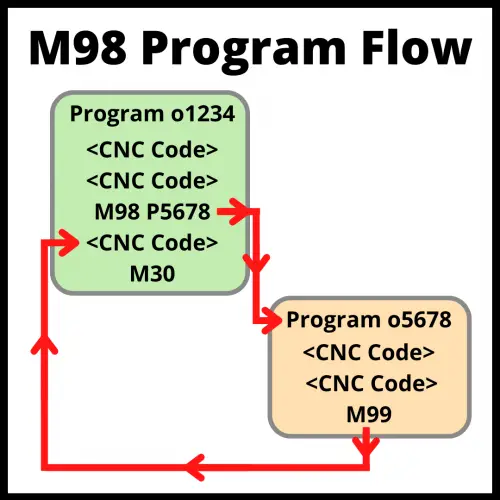
M30 ends a main program. It cannot be used to end a subprogram (called with M98) and return control to the main program.

The only code that ends a subprogram is M99. When the control reads M99, it jumps back to the line after the M98 call in the main program and keeps running.

(Main Program)
O1000
G00 X1.0 Y1.0
M98 P2000        (Call subprogram O2000)
G00 X0 Y0
M30              (End main program -- rewinds to start)

(Subprogram)
O2000
G01 Z-0.5 F10.0
G00 Z1.0
M99              (Return to main program -- NOT M30)
Diagram showing CNC program flow from main program through M98 subprogram call and M99 return to main

If you accidentally use M30 inside a subprogram, the machine will stop completely and not return to the main program. This is a common mistake when copying program endings from a main program into a subprogram.

Subprograms can call other subprograms (nesting), but most programmers keep it simple and only call subprograms from the main program to avoid confusion.

FAQS

What does M30 do on a CNC machine?

M30 ends the program, stops the spindle and coolant, resets modal commands to default, and moves the program cursor back to line 1 so the machine is ready to run again.

What is the difference between M30 and M02?

Both stop the program, but M30 rewinds to line 1 and resets modal commands. M02 does not rewind and leaves modal settings active from the previous run. M30 is the standard on modern machines.

Can I use M30 to end a subprogram?

No. Using M30 inside a subprogram stops the entire program instead of returning to the main program. Always use M99 to end a subprogram.

What happens if I forget M30?

Most CNC controls will alarm out or stop at the last line of code. Some older controls may loop or behave unpredictably. Always end your main program with M30 (or M02 on older machines).

M02 G-Code: Program End Without Rewind Explained

The M02 code ends a CNC program. When the control reads M02, it stops all movement, turns off the spindle, and shuts off the coolant. Unlike M30, it does not reset back to the beginning of the program.

Key Takeaways

  • M02 ends the CNC program and stops all machine functions
  • It does NOT rewind (reset) to the start of the program — use M30 if you need that
  • M30 is the more common choice on modern machines; M02 is mostly seen on older controls
  • Always home the spindle to a safe Z position and cancel coolant before M02
  • M99 — not M02 — is used to end a subprogram
M02 – At A Glance
FunctionProgram End, No Rewind
TypeNon-modal (one-shot)
Stops spindle?Yes
Stops coolant?Yes
Resets to start?No
Related codesM30 (program end with rewind), M99 (subprogram end)

What Does M02 Do?

M02 tells the CNC machine that the program is finished. The control stops executing code. All of these things happen at the same time:

  • All axis movement stops
  • The spindle stops rotating
  • Coolant shuts off

After M02 runs, the program cursor stays at the M02 line. It does not go back to the top. On some controls, this means you have to manually rewind or re-select the program before running it again.

The Tape Rewind History

The “no rewind” name comes from older CNC machines that read programs off punched paper tape. When you ran M02, the machine stopped but didn’t rewind the tape back to the beginning. That physical tape had to be rewound by hand — or looped into a continuous roll so it would feed through again automatically. Today, tapes are gone, but the name stuck.

M02 vs. M30: What’s the Difference?

Both codes stop the program. The main difference is what happens after.

M02M30
Ends the programYesYes
Rewinds to startNoYes
Resets modal commandsNo (modals stay active)Yes (resets to defaults)
Works on newer machinesSometimesYes
Common use todayRarelyStandard

M02 leaves all modal commands — things like G41 cutter comp, G43 tool length offset, work offsets — in whatever state they were when the program ended. M30 resets the machine back to its default state. This is one reason M30 is the safer and more common choice on modern machines.

COMMON MISTAKE – Leaving modal commands on with M02

Mistake: Using M02 instead of M30 and then re-running the program without noticing modal commands are still active. Why it matters: If G41 or G43 is still on from the previous run, your next program start can behave unexpectedly — or cause a crash on machines that don’t auto-reset.

Some machines can be configured to treat M02 as if it were M30. Check your machine manual or ask your setup person if you’re unsure how your specific control handles it.

Try our program end visualizer and see for yourself the difference that using M02 vs M30 makes.

M02 vs M30 — Program End Visualizer
Idle
Running
Safe Z / M09
End Code
Final State
Program A — ends with M02
1G90 G54 G00 X0 Y0
2S1500 M03 (spindle on)
3M08 (coolant on)
4G91 G28 Z0 (Z to home)
5M09 (coolant off)
6M05 (spindle off)
7M02
Program B — ends with M30
1G90 G54 G00 X0 Y0
2S1500 M03 (spindle on)
3M08 (coolant on)
4G91 G28 Z0 (Z to home)
5M09 (coolant off)
6M05 (spindle off)
7M30
M02 — Machine State
Spindle
Coolant
Modal State
Program Cursor
Press “Run Simulation” to start.
M30 — Machine State
Spindle
Coolant
Modal State
Program Cursor
Press “Run Simulation” to start.
Key Differences After Program End
M02
M30
Program Cursor
Stays at M02 line
Rewinds to line 1
Modal Commands
Still active from last run
Reset to defaults
Ready to Re-run?
No — must rewind manually
Yes — press Cycle Start
Spindle
Off
Off
Coolant
Off
Off
Typical Use
Older / legacy machines
Standard on modern CNCs

Best Practices Before Using M02

Don't just throw M02 at the end of your program and call it done. A few safety steps first:

Return the Spindle to a Safe Position

Make sure the tool is somewhere safe before the program ends. On a mill, rapid the Z-axis up to a safe height. You can use G28 Z0 (return to machine zero in Z) or a G53 move to a known safe position. This prevents the tool from sitting close to the part when the machine stops.

G91 G28 Z0    (Incremental move — return Z to machine home)
M05           (Spindle off)
M09           (Coolant off)
M02           (End program)

Cancel Coolant With M09 First

Always cancel coolant with M09 before M02. Most controls will shut off coolant when M02 runs anyway, but it's good practice to be explicit. It also makes your code easier to read and troubleshoot.

COMMON MISTAKE - Not returning Z to a safe height before M02

Why it matters: If the program ends with the tool close to the part, the operator has to jog the axis manually before removing the part — which adds time and increases the risk of a bump or scratch.

How to End a Subprogram

M02 only ends a main program. If you're writing a subprogram (called with M98), you cannot use M02 to return control to the main program.

The only way to end a subprogram is with M99. When the control reads M99, it returns to the line after the M98 call in the main program and keeps running.

(Main Program)
O1000
G00 X1.0 Y1.0
M98 P2000        (Call subprogram O2000)
G00 X0 Y0
M30              (End main program)

(Subprogram)
O2000
G01 Z-0.5 F10.0
G00 Z1.0
M99              (Return to main program — NOT M02 or M30)
M98 Code Flow
How the CNC reads a program that contains a subprogram

If you use M02 or M30 inside a subprogram, the machine will treat the entire program as finished. It won't return to the main program. That's rarely what you want.

Subprograms can call other subprograms — this is called nesting. Most programmers keep it simple and only call subprograms from the main program to avoid confusion.

FAQs

What does M02 do on a CNC machine?

M02 ends the CNC program. It stops all axis movement, the spindle, and the coolant. The program cursor stays at the M02 line and does not return to the beginning.

What is the difference between M02 and M30?

Both end the program, but M30 rewinds back to the start and resets modal commands. M02 does not rewind and leaves modal settings in their current state. M30 is the standard choice on most modern machines.

Can I use M02 to end a subprogram?

No. To end a subprogram and return to the main program, you must use M99. Using M02 inside a subprogram will stop the entire program instead of returning to the main program.

Why is it called "no rewind"?

The name comes from the era of punched paper tape CNC programming. M02 stopped the program without rewinding the physical tape back to the start. The term stuck even though modern CNCs use memory, not tape.

M01 G-Code: How the CNC Optional Stop Works

You’re running a CNC program and the machine suddenly stops. The spindle winds down, the coolant shuts off, and everything goes quiet. Was it a crash? An alarm?

Nope — it’s an M01. An optional stop. And it did exactly what it was supposed to do.

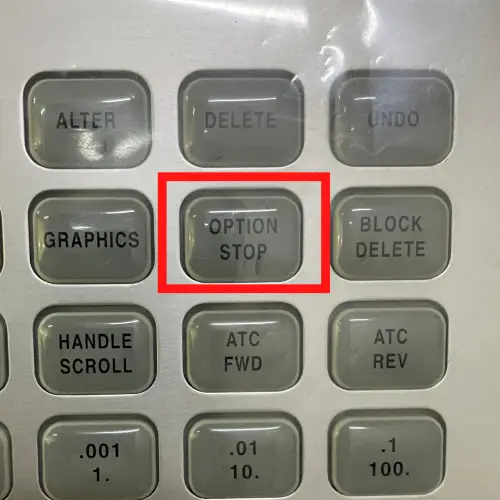
M01 is a code that pauses your program mid-run so the operator can step in, check something, and then send the machine back to work. The key word is optional — a switch on the control panel controls whether M01 actually stops the machine or gets ignored completely.

This guide explains how M01 works, when to use it, and how it compares to similar codes like M00 and M30.

Key Takeaways

  • M01 is the optional stop code — it pauses the program only when the optional stop switch is turned on
  • When triggered, it stops all axis movement, the spindle, and coolant flow
  • Nothing is reset — active modes like feed rate and spindle speed stay in memory
  • Press Cycle Start to resume the program from the next line
  • If the optional stop switch is off, the machine ignores every M01 in the program
M01 – At A Glance
FunctionOptional Stop
StopsSpindle, coolant, axis movement
TypeNon-modal
Resets anything?No
Resume withCycle Start button
Controlled byOptional Stop switch/button on the control panel

What does M01 do?

M01 is called the optional stop. It pauses your CNC program mid-cycle — but only if the optional stop switch on the control panel is turned on.

haas cnc control panel with optional stop button highlighted
Haas optional stop button

When the machine reads an M01 and the switch is on, it stops axis movement, turns off the spindle, and shuts off coolant. The program pauses and waits for the operator to press Cycle Start before it continues.

If the optional stop switch is off, the machine skips right past every M01 it reads. The program keeps running like normal.

What does M01 actually stop?

When M01 triggers, these functions are turned off:

  • All axis movement
  • Spindle rotation
  • Coolant flow

One important thing to know: M01 does not restart these functions when you press Cycle Start. It only pauses the program. If the spindle or coolant was turned off by the M01, the programmer needs to turn them back on in the lines that follow the M01. Otherwise, the machine resumes movement with the spindle off.

When should you use M01?

Optional stops give the operator a chance to step in without stopping production entirely. Common reasons to use M01 include:

  • Checking part dimensions mid-program
  • Inspecting the cutting tool for wear or damage
  • Doing a manual tool change
  • Clearing chips from the part or fixture
  • Adjusting coolant lines
  • Adding tapping fluid before a threading operation
cnc machine table with coolant lines and spindle shown
So many coolant lines to move

The key benefit is flexibility. If the optional stop isn’t needed for a given run, the operator simply leaves the switch off and the machine ignores it. If a quality check is required — say, measuring every fifth part — the switch gets turned on for that one cycle.

How to resume after M01

When the program pauses on an M01, the machine holds its position and waits. All previously active settings — feed rate, spindle speed, unit mode, work offset — stay exactly as they were.

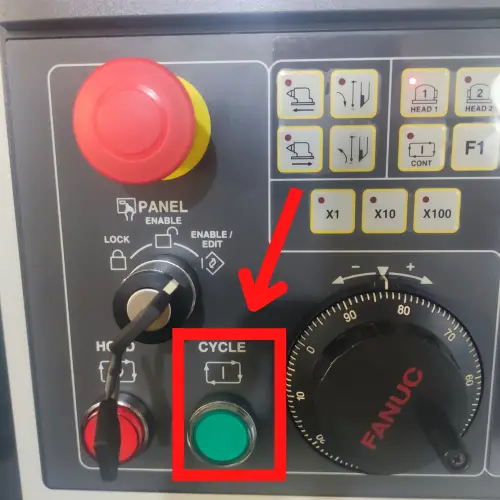
To continue, press the Cycle Start button. The program picks up at the very next line after the M01 code.

fanuc cnc control panel with cycle start button highlighted
Fanuc cycle start button

The programmer is responsible for making sure the spindle and coolant are turned back on in the program after an M01, if they’re needed. The machine won’t turn them on automatically on resume.

COMMON MISTAKE – Leaving the Optional Stop Switch On in Production

Forgetting to turn off the optional stop switch after setup is one of the most common ways to accidentally halt a production run.

If the switch is left on, the machine will stop every time it hits an M01 — even if the operator isn’t expecting it. Always confirm the switch is off before running lights-out or unattended.

M01 vs M00: What’s the difference?

M00 is the mandatory program stop. M01 is the optional program stop. They behave the same way when they trigger — both stop movement, spindle, and coolant, and both resume with Cycle Start.

The difference is one simple thing: M00 always stops the machine. M01 only stops the machine if the optional stop switch is on.

Try it for yourself below.

Interactive — Program Stop Visualizer

Press Cycle Start to run the program. It runs automatically and stops when it hits a stop command.

Speed:
— M01 will be skipped
Machine State
Spindle
Coolant
Feed
ProgramIDLE
Press Cycle Start to run the program.
Executing
Completed
Stop command
Skipped (M01 off)

Use M00 when a stop is required every single time — such as a mandatory tool change or a critical inspection point. Use M01 when the stop is situational and you want the flexibility to bypass it during normal production.

M01 vs M30: What’s the difference?

M30 ends the program and resets back to the beginning. M01 just pauses it.

After an M01, pressing Cycle Start continues from the next line in the program. After an M30, pressing Cycle Start starts the entire program over from the top.

M30 is also not affected by the optional stop switch. It ends the program every time, no matter what.

FAQS

Does M01 reset the work offset or tool compensation?

No. M01 only pauses the program. Active work offsets, tool length compensation, cutter radius compensation, and modal G-codes all stay in effect. Nothing is reset until the program ends or those codes are cancelled explicitly.

Does M01 automatically turn the spindle back on when I press Cycle Start?

No. M01 turns off the spindle, coolant, and axis movement — but it does not turn them back on when you resume. The programmer must include M03 (spindle on) and M08 (coolant on) after the M01 in the program if they’re needed to continue.

Can I use more than one M01 in a single program?

Yes. You can place M01 as many times as needed throughout a program. Each one is a separate optional pause point. All of them will trigger if the optional stop switch is on, and all of them will be skipped if it’s off.

What’s the difference between M00 and M01?

Both stop the machine the same way. The difference is that M00 is a mandatory stop — it always halts the program. M01 is conditional — it only stops the program when the optional stop switch on the control panel is turned on.

M00 G-Code: Program Stop Explained With Examples

M00 is a program stop command. When the CNC machine reads it, everything stops — axes, spindle, and coolant — and the program waits until you press Cycle Start to continue.

Key Takeaways

  • M00 stops the machine mid-program: axes, spindle, and coolant all shut off
  • Nothing resets when M00 triggers — all modal states stay exactly as they were
  • The machine resumes from the next line when Cycle Start is pressed
  • Use it for manual tool changes, part inspection, chip clearing, or coolant adjustment
  • Unlike M30, M00 does not end the program — it just pauses it
M00 – At A Glance
FunctionProgram Stop (unconditional)
TypeNon-modal
Turns offSpindle, coolant, axis movement
Resumes withCycle Start button
Resets modal states?No
Related codesM01 (optional stop), M02 (program end), M30 (program end + rewind)

What Does M00 Do?

M00 is a mandatory, unconditional program stop. Every time the controller reads it, the machine stops — no exceptions.

When M00 executes, it shuts off:

  • All axis movement
  • Spindle rotation
  • Coolant flow

The program halts at that line and waits. No alarm fires. The machine is just paused.

What Stays Active After M00?

This is the part that trips up a lot of beginners.

M00 does not reset anything. When the machine stops, it keeps all of its current settings:

Think of it like pressing pause on a video. Everything is frozen in place, not rewound.

COMMON MISTAKE – Expecting the spindle to restart automatically

Why it matters: M00 turns the spindle off, and it stays off. Pressing Cycle Start doesn’t automatically restart it.

If your program doesn’t include an M03 (or M04) after the M00, the machine will keep running with no spindle — which can damage your tool and the part.

When Should You Use M00?

Program stops are used any time you need the operator to do something manually before the program continues. Common reasons include:

  • Manual tool changes (if not using an ATC)
  • Measuring a critical dimension mid-cycle
  • Inspecting the surface finish
  • Clearing chips from a deep pocket
  • Adding tapping fluid before a threading operation
  • Repositioning or adjusting coolant lines
cnc machine table with coolant lines and spindle shown
So many coolant lines to move

Ideally, the programmer will document why each M00 is used — in the program comments and on the setup sheet. If you’re an operator and you don’t know why the machine stopped, check those first.

M00 Code Example

Here’s a simple example showing M00 used mid-program so the operator can inspect a bore diameter before the finish pass runs:

O1000                          (Program number)
T01 M06                        (Call tool 1)
G90 G54 G00 X0. Y0.            (Absolute mode, work offset, rapid to start)
G43 H01 Z1.0 M03 S800          (Tool length comp, spindle on at 800 RPM)
G01 Z-1.0 F10.0                (Rough bore pass)
G00 Z1.0                       (Rapid out)
M00                            (PROGRAM STOP — measure bore before finish pass)
M03 S1200                      (Restart spindle for finish speed)
G01 Z-1.0 F5.0                 (Finish bore pass)
G00 Z10.0                      (Rapid to safe Z)
M30                            (Program end and rewind)

Notice that after the M00, the program explicitly turns the spindle back on with M03. It doesn’t come back on by itself.

How to Resume After M00

When M00 stops the machine, the operator presses the Cycle Start button to continue.

fanuc cnc control panel with cycle start button highlighted
Fanuc cycle start button

The program picks up on the line immediately after the M00. It does not restart from the beginning.

Make sure any spindle or coolant that was turned off by M00 gets turned back on in the program before the next operation needs them.

M00 vs M01 — What’s the Difference?

M00 and M01 behave almost identically. Both stop the machine the same way. Both require Cycle Start to resume.

The key difference: M01 is an optional stop. It only executes if the Optional Stop button (or switch) on the control panel is turned on. If that button is off, the machine reads M01 and keeps running like nothing happened.

M00 always stops. There’s no way to skip it.

haas cnc control panel with optional stop button highlighted
Haas optional stop button

Use M00 when the stop is mandatory — the operator absolutely must do something before continuing. Use M01 when the stop is useful during setup or inspection but should be skippable in production.

Use the buttons below to step through the program one line at a time. Watch how M00 pauses execution and shuts off the spindle and coolant — and notice that all other settings stay exactly as they were. Switch to M01 mode to see how the Optional Stop switch changes the behavior.

Interactive — Program Stop Visualizer

Press Cycle Start to run the program. It runs automatically and stops when it hits a stop command.

Speed:
— M01 will be skipped
Machine State
Spindle
Coolant
Feed
ProgramIDLE
Press Cycle Start to run the program.
Executing
Completed
Stop command
Skipped (M01 off)

Key observation: after the stop, the program has to explicitly restart the spindle with M03. Pressing Cycle Start does not bring it back on automatically.

COMMON MISTAKE – Using M00 instead of M01 for inspection stops

Why it matters: In production, operators often don’t need to stop at every inspection point. Using M00 forces a stop every single cycle. M01 gives them the flexibility to skip it once the process is dialed in.

M00 vs M30 — What’s the Difference?

M00 pauses the program. M30 ends it.

After M00, pressing Cycle Start continues from the next line. After M30, pressing Cycle Start starts the entire program over from the beginning.

M30 also typically rewinds the program pointer and resets the control to the top of the program. M00 does none of that.

FAQs

What does M00 do in CNC?

M00 is a program stop command. It halts all machine functions — spindle, axes, and coolant — and waits for the operator to press Cycle Start before continuing. Nothing resets when M00 triggers; the program just pauses at that line.

Does M00 reset the CNC program?

No. M00 only pauses the program. All modal settings (feed rate, spindle speed, offsets, positioning mode) stay exactly as they were. The program resumes from the next line when Cycle Start is pressed.

What is the difference between M00 and M01?

M00 is an unconditional stop — the machine always stops when it reads M00. M01 is an optional stop — it only stops the machine if the Optional Stop switch on the control panel is turned on. If the switch is off, M01 is ignored.

Do I need to turn the spindle back on after M00?

Yes. M00 turns the spindle off, and it doesn’t restart automatically when Cycle Start is pressed. You need to include an M03 (or M04 for reverse) in the program after the M00 to restart the spindle.

H Code in CNC: Tool Length Offsets (G43) Explained

The H code tells the CNC machine which tool length offset to use when running a program. It works alongside G43 (tool length compensation) to make sure the machine knows exactly how long the current cutting tool is.

Key Takeaways

  • The H code calls up a stored tool length value from the machine’s offset table
  • It is always used together with G43 (or G44) — it doesn’t do anything on its own
  • H1 is paired with tool T1, H2 with T2, and so on — this is the standard convention
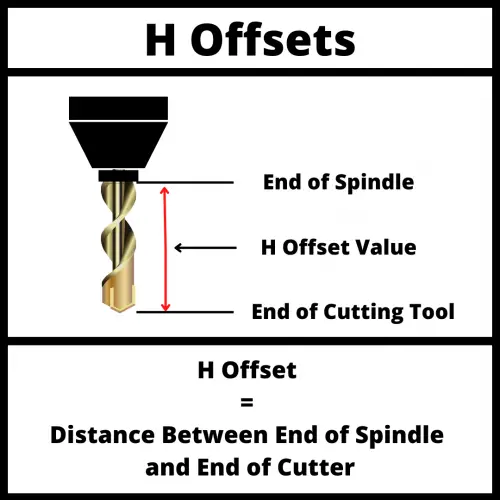
  • The H offset value is the measured distance from the spindle nose to the tip of the tool
  • Calling H0 applies zero offset — a common source of crashes for beginners
H Code – At A Glance
FunctionHeight Offset (Tool Length Offset)
Used WithG43, G44
Offset TypeLinear (Z-axis)
Where StoredTool Offset Table
Typical PairingH1 = Tool 1, H2 = Tool 2
Cancelled ByG49

What Does the H Code Do?

Every cutting tool has a different length. A short drill and a long end mill sitting in the same spindle reach different depths for the same Z move. Without accounting for this, your program would cut at the wrong depth — or crash the tool into the part.

The H code solves this. It pulls a length value from the tool offset table and gives it to the machine so Z moves are adjusted correctly.

The H code is always paired with G43 (positive tool length compensation). You will see it written like this:

G43 H1 Z2.0

This tells the machine: apply the length stored in offset #1 to the Z-axis position.

illustration of a cnc cutting tool that shows what an H offset is

What is tool length compensation?

Tool length compensation (TLC) is how the CNC machine accounts for differences in tool length. When you put a new tool in the spindle, it almost never sits at the exact same position as the last one. Even 0.010″ of difference can matter when you’re holding tight tolerances.

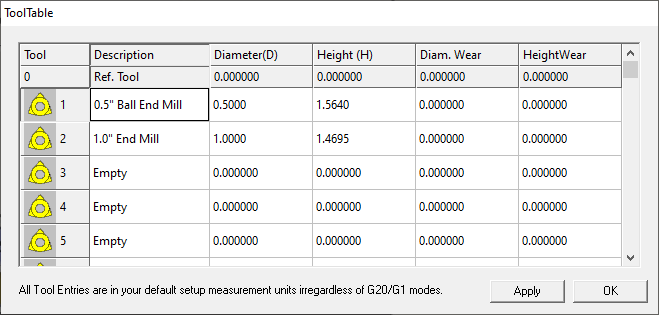
Instead of rewriting the program every time you swap tools, you measure each tool’s length and store it in the offset table. The H code calls that stored value at runtime.

G43 is the standard for positive offset — the machine adds the offset value to your Z positions. G44 (negative offset) exists but is rarely used in modern CNC programming. Stick with G43 unless you have a specific reason not to.

mach 3 tool offset table
Tool offset table

How to Set an H Offset at the Machine

Setting the H offset is a physical setup step — it happens at the machine before running the program.

The most common method is touching off each tool:

  1. Load the tool into the spindle
  2. Jog the Z-axis down until the tool tip just touches a reference surface (often the top of the part or a known reference block)
  3. Note the Z machine coordinate
  4. Enter that value into the H offset register for that tool

Some shops use a tool length measuring device (tool presetter) that reads the length automatically. Either way, the value ends up in the offset table where the H code can call it.

COMMON MISTAKE – Not adding the height of your reference block

Why it matters: If you touch off your tool to the top of a 2.000″ reference block and enter the raw machine coordinate without adding 2.000″, your offset is off by the full height of the block. The tool will cut 2 inches deeper than intended — likely a crash or a scrapped part.

Always add the block height to whatever Z coordinate the machine shows during touch-off.

H offset vs D offset

H and D offsets both live in the tool offset table, but they store different things.

The H offset stores the length of the tool (the Z-axis dimension). The D offset stores the diameter (used for cutter radius compensation with G41/G42).

A typical tool in a program uses both:

T01 M06           (Call tool 1)
G43 H1 Z2.0       (Apply H1 for length compensation)
G41 D1 X1.0 F20.0 (Apply D1 for diameter compensation)
illustration of a cnc cutting tool that shows what an D offset is
illustration of a cnc cutting tool that shows what an H offset is

H Offset Numbering

The standard convention: match your H number to your tool number. Tool 1 uses H1, tool 2 uses H2, and so on. This keeps programs readable and easy to troubleshoot.

On most modern CNC controls, H and D offsets are stored separately so there’s no conflict using H1 and D1 for the same tool. Older machines sometimes share the offset registers between H and D values. If you run into that situation, a common workaround is to start one set of offsets at a higher number — for example, use H1–H20 for length offsets and D21–D40 for diameter offsets.

If you’re working on a newer machine, follow the simple rule: T1 = H1 = D1.

H Code Program Example

Here’s a short program showing how the H code fits into a typical milling operation:

T01 M06              (Tool change to tool 1)
G00 X4.0 Y5.0        (Rapid to XY position)
G43 H1 Z2.0          (Turn on tool length comp with H1, rapid to Z2.0)
G01 Z-0.5 F20.0      (Feed into cut)
G00 Z2.0             (Retract)
G49                  (Cancel tool length compensation)

The G43 H1 line is where the H code does its work. The machine reads the value stored in offset register #1 and uses it to adjust all Z positions from that point forward until G49 cancels it.

COMMON MISTAKE – Not cancelling G43 with G49 before a tool change

Why it matters: Some controls carry the previous H offset forward into the next tool. This can cause the next tool to cut at the wrong depth.

Always cancel with G49 — or make cancellation part of your tool change routine.

FAQS

What does the H code do in CNC?

The H code calls a tool length offset value from the machine’s offset table. It is used with G43 to compensate for differences in tool length so the machine cuts at the correct Z depth.

What is the difference between H offset and D offset?

The H offset stores the length of the tool (Z-axis). The D offset stores the diameter. H is used with G43/G44 for length compensation; D is used with G41/G42 for cutter radius compensation.

What happens if I use H0?

H0 applies zero tool length compensation. The machine ignores any stored offset and moves to the raw Z coordinates in your program. This is a common cause of tool crashes for beginners.

Does the H number have to match the tool number?

It doesn’t have to, but it’s the standard convention. Using T1 with H1, T2 with H2, and so on makes programs easier to read and troubleshoot. Deviation from this pattern should always be intentional and documented.

G91 G-Code: Incremental Positioning Mode Explained

G91 sets your CNC machine to incremental positioning mode. Every move you program is measured from wherever the tool currently is — not from a fixed zero point.

Key Takeaways

  • G91 activates incremental positioning mode — each move is measured from the tool’s current position
  • It’s modal, meaning it stays active until you switch back to G90 (absolute mode)
  • Most programs use G91 only for specific situations: evenly spaced hole patterns and machine home moves
  • G91 G28 Z0.0 is one of the most common G91 lines you’ll see — it sends the Z axis home incrementally
  • Always return to G90 after using G91 to avoid unexpected moves in the next section of code
G91 – At A Glance
FunctionIncremental positioning mode
TypeModal (Group 3)
Cancelled byG90
Common useEvenly spaced hole patterns, G28 home moves
Paired withG28, canned cycles (G81, G83, etc.)

What does G91 do?

When G91 is active, every coordinate you program tells the machine how far to travel from where it is right now. The zero point moves with the tool on every single move.

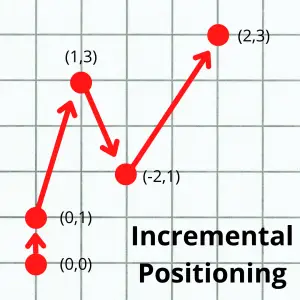
If the tool is at X1.0 and you program G00 X1.5, the machine moves 1.5 inches further in the X direction — landing at X2.5 from part zero. It doesn’t go to X1.5 on the coordinate grid. It travels a distance of 1.5.

This is the opposite of G90 (absolute mode), where every coordinate is always measured from the same fixed part zero.

graph paper example of incremental positioning with multiple points as examples
graph paper example of absolute positioning with multiple points as examples

G90 vs G91: CNC positioning modes

CNC machines have two positioning modes available.

They are absolute positioning using the G90 code and incremental positioning using the G91 code.

As noted above, incremental positioning with G91 will take all locations relative to the machines current location.

With absolute positioning (G90), the machine will interpret all locations as relative a static location. This will usually be the work offset zero location as set by the G54 code or the machines home location if no work offset is active.

G90 and G91 are both modal codes.

Modal codes stay active until they are either canceled or changed. For G90 and G91, there is no cancel code so the only way to change them is to call the opposite code.

G91 vs G90: Choosing the right mode

Most CNC programs are written in G90 (absolute mode) for the main body of code. It’s easier to read a part print and program directly from the dimension values on the drawing.

G91 gets used in two specific situations where it actually makes the code simpler: evenly spaced hole patterns and machine home moves.

The difference between the two modes comes down to one question: is each coordinate a position or a distance? In G90, it’s always a position from part zero. In G91, it’s always a distance from wherever you just were.

Enter a few target positions below to see both modes side by side:

G90 vs G91 — See the Difference
# Enter position (X, Y) G90 — Absolute G91 — Incremental
Always from part zero
From previous position

Notice how the G90 column always traces back to part zero, while the G91 column shows only the distance traveled from the previous point. Same tool path — different instructions.

Now let’s focus on when G91 gets used.

Evenly spaced hole patterns

If you need to drill five holes spaced exactly 1.5 inches apart, G91 lets you write the same move five times instead of calculating five different absolute positions.

G91                          ; Switch to incremental mode
G99 G81 Z-0.75 R0.1 F8.0     ; Drill first hole
X1.5                         ; Move 1.5" and drill
G80                          ; Cancel canned cycle
G90                          ; Return to absolute mode

Each X1.5 line means “move 1.5 inches from where you just drilled.” You don’t have to calculate X2.5, X4.0, X5.5, X7.0 — the machine handles the math.

In G90, that same pattern would require five different X coordinates. G91 makes it cleaner and less error-prone.

COMMON MISTAKE – Forgetting to call G90 after finishing a G91 section

Why it matters: G91 is modal — it stays active until you turn it off. If the next tool section starts without a G90, all those absolute coordinates get read as incremental moves. The tool will go to the wrong position, and if a fixture is in the way, you’ll crash.

The G91 G28 home move

The most common place you’ll see G91 in a real program is the machine home move between tool changes:

G91 G28 Z0.0    ; Move Z to machine home (incrementally)
G28 X0.0 Y0.0   ; Move X and Y to machine home
G90             ; Return to absolute mode

The G91 here isn’t about hole patterns — it’s about how G28 works. G28 sends the axis to machine home by first moving to an intermediate point. Using G91 with Z0.0 tells the machine to move zero distance in Z before going home, which sends it straight up from wherever it is. This is the safe way to retract the tool before moving X and Y.

You’ll see this block in nearly every CNC program that uses tool changes.

COMMON MISTAKE – Using G90 G28 Z0.0 instead of G91 G28 Z0.0

Why it matters: With G90 active, G28 Z0.0 moves the Z axis to Z0.0 on the coordinate system (part zero) before going home — which could drive the tool straight into your part.

With G91, Z0.0 means “travel zero distance, then go home,” which retracts cleanly from wherever the tool is.

When to use G91 — and when not to

Use G91 when you have repetitive moves with equal spacing, or when you need a G28 home move. These are the two situations where incremental mode genuinely simplifies the code.

For everything else, stay in G90. Programming an entire part in incremental mode is possible but makes the code much harder to read and verify. One wrong move throws off every subsequent position.

A good rule: if you use G91, always put G90 on the very next line after you’re done with it.

FAQs

What does G91 mean in CNC?

G91 is the G-code that activates incremental positioning mode. When G91 is active, all coordinate values are measured from the tool’s current position, not from a fixed part zero.

What is G91 G28 Z0.0 used for?

This is the standard way to send the Z axis to machine home between tool changes. G91 tells the machine to treat the Z0.0 as an incremental distance (zero distance), so it goes straight to home from wherever the tool currently is without first moving to the part zero Z position. It is the safe way to retract before moving X and Y.

When should I use G91 instead of G90?

Use G91 for evenly spaced hole patterns (where you want to repeat the same distance move) and for G28 home moves. For all other machining, G90 is easier to read and verify.

What happens if I forget to switch back to G90 after using G91?

The machine will stay in incremental mode. Any absolute coordinates in the next section of your program will be interpreted as distances to travel, not positions to go to. This will send the tool to the wrong location and can cause a crash.